I was bored Sunday night and had a recent Twitter thread going through my head regarding formatting Access Point MAC addresses, so I figured let me see if I can figure it out.
Task – Convert AP MACs from A1B2C3D4E5F6 to a1:b2:c3:d:4:e5:f6
There are few ways to accomplish this. You can use MS Excel and simply use the following formula that should let you convert them; where “#” = cell number
=IF(A#<>"",""&LOWER(LEFT(A#,2))&":"&LOWER(MID(A#,3,2))&":"&LOWER(MID(A#,5,2))&":"&LOWER(MID(A#,7,2))&":"&LOWER(RIGHT(A#,2)),"")In the next method I used a .csv file and a python script. I can’t take full credit for this because I was stuck towards the end and had to ask for some help on Stack Overflow, so hopefully this will help out others.
My actual .csv file:

import csv
import pandas as pd

def readfile_csv():
    # csv_data = []
    with open('ap_macs.csv', 'r',encoding='utf-8-sig') as csv_file:
        csv_reader = csv.reader(csv_file, delimiter=',')
        next(csv_reader)
        for rows in csv_reader:
            data = (rows[0])
            for i in range(0,12,2):
                 format_mac = ':'.join(data[i:i + 2] for i in range(0, 12, 2)).swapcase()
#This is where I got stuck, I had this statement in line with the #previous line which was making the changes but multiple times. All I #had to do was to back space the indentation
            print(format_mac)
This is my output with the wrong indentation, as you can see it went over the same row multiple times.

Here is the output I got after I fixed the indentation issue:
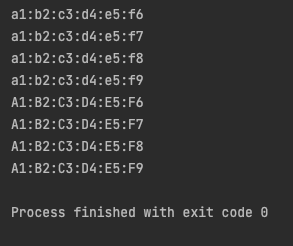
Notice there are some with lower case and some with upper case. I am simply using “swapcase()” here. This allowed me to change all lower case to upper case MAC format and, all upper case to lower case MAC format.
Feel free to share your thoughts and if you have any script that may be helpful, you are welcome to share it here.
NOTE: Always remember to check the script in a lab if you copy and paste it from the web and use it at your own risk.
1 thought on “MAC Format – Part 1 (Basic)”