I love innovation and the idea of removing complexity. I worked for a manager once and during our usual 1:1 meeting, he told me one day that I don’t want to you to be the guy who always looks at a blinking yellow light and press a button to make it go away just because someone told me so. Instead find out why that yellow light starts to blink and how to simplify and eliminate the cause.
Before I talk more about what I want to talk about, I’d like to share couple of other quotes that I absolutely love.
Any intelligent fool can make things bigger and more complex. It takes a touch of genius – and a lot of courage – to move in the opposite direction.
Alert Einstein
Simple can be harder than complex: You have to work hard to get your thinking clean to make it simple. But it’s worth it in the end because once you get there, you can move mountains.
Steve Jobs
RADIUS and NAC solutions are important to many organizations but they can be very complex to deploy. Previously I have written couple of articles on Cloud based RADIUS and NAC solutions.
- Arista – AGNI
- Juniper – Access Assurance
Both of these solutions brought innovation and simplicity delivered from the cloud to us. NOTE: this post is not about one verses the other but more focused on the evolution, innovation, configuration and simplification of RADIUS and NAC solutions.
I have written about Nile’s Cloud RADIUS in the past so I won’t get into the details of it in here, but focus on what is Nile bringing to table when it comes to NAC with it’s Trust Engine.
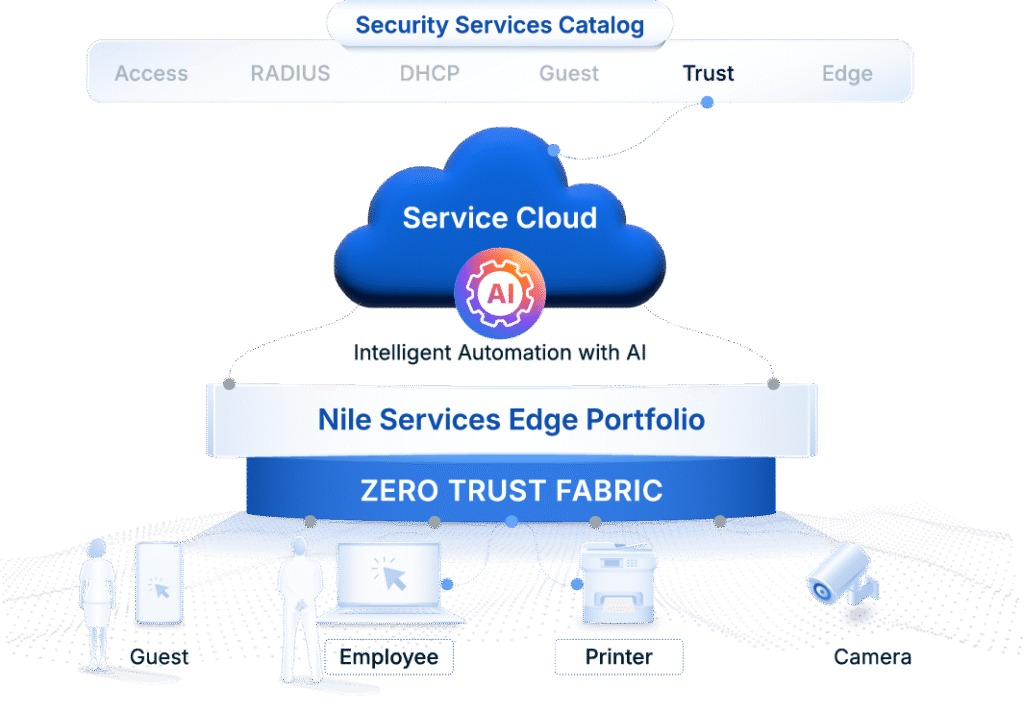
First I’m going to take a step back and bring up some important bullet points because they are part of the over all Zero Trust Fabric. Nile has some built in Zero-Trust and NAC features that Trust Engine uses to provide enhanced experience.
- Host Based micro-segmentation – No two hosts on the same network are able to communicate with each other by default
- Fingerprinting – Each device is fingerprinted and profiled
- Continuous monitoring of the devices
NOTE: Keep these three features in mind as we dig more into the Trust Engine.
Let’s take a look at Nile’s Trust Engine and how to configure different options.

Introduction to Nile’s Trust Engine – Options and features
I’ll walk through different sections and what they are used for.

Policy Groups:
Nile’s zero trust fabric uses context and identity, policy groups as I see it allow creating and defining just that.
User Groups:
Define users based on if they are part of a segment, IDP Group or IP/Subnet. There are three options here:
- Segment – This allows users to pick a segment that is already configured.
- IDP Group – This allows users to pick an IDP group when using SSO.
- IP/Subnet – Here users can manually enter IP/Subnet information manually.


Device Groups:
Define devices that are part of a segment, specific fingerprint, MAC/OUI or IP/Subnet. There are three options in here. Fingerprint, MAC/OUI and Network.
- Segment – This allows users to use one of the predefined segments
- Fingerprint – This allows users to setup Fingerprinting match.
- MAC/OUI – This allows users to manually enter MAC and OUI information to match
- IP/Subnet – Here users can manually enter IP/Subnet information manually.


Device Group – Device Validation Check:
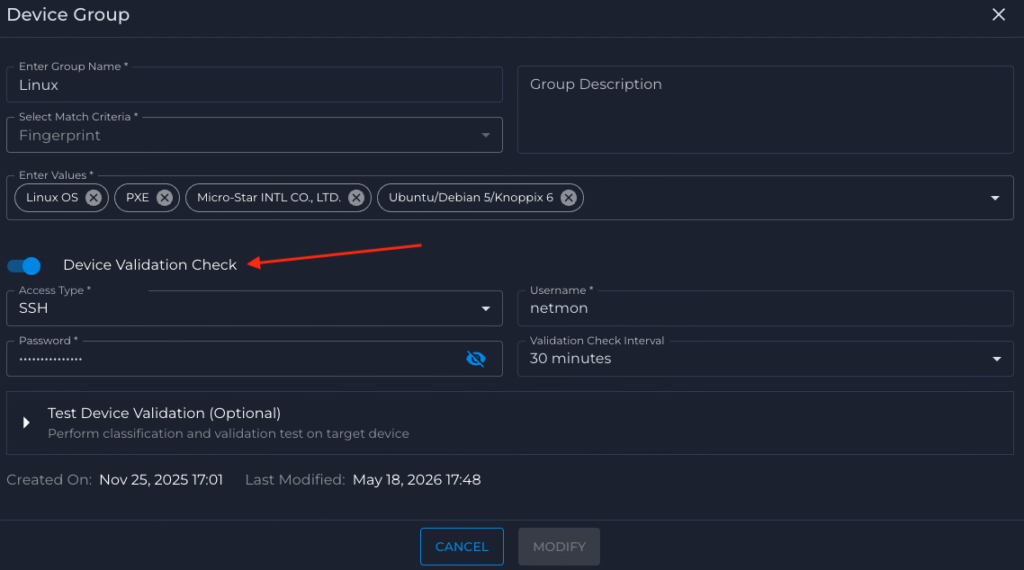
Device validation check feature is part of the Device Group. This is where I can specify validation checks to make sure only devices that have been authorized can join the network. Think printers or other devices if an IT team wants to make sure that only device they authorize should gain access to the network and if they do not pass the validation check they need to be quarantined they can use the following options to perform Device Validation Checks. SSH, SNMPv3, HTTP, HTTPS.

In the example below I am using a Finger Print to match devices to a group called “Linux”. Next I configured a Device Validation Check using SSH. If those credential do not exist on any of the devices that fall under those finger printing rules they will be quarantined.
App Groups:
App Groups currently support “IP/Subnet” but more interesting stuff is on the roadmap.

All Users & Devices – Assigned:
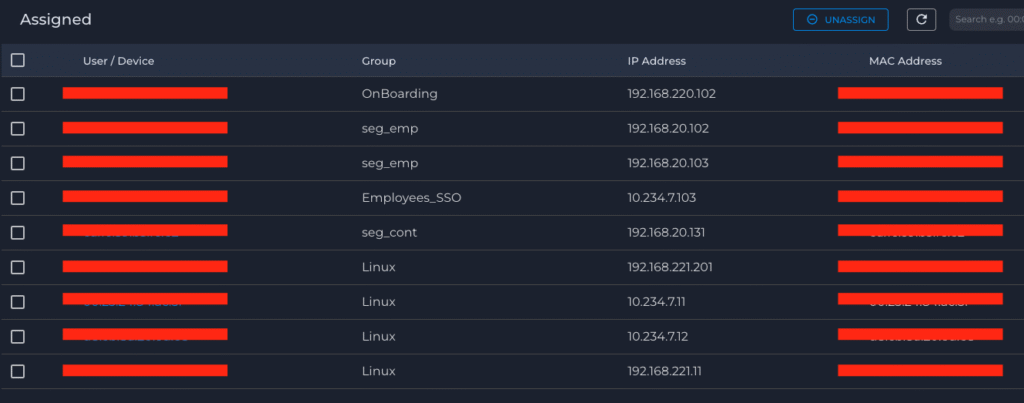
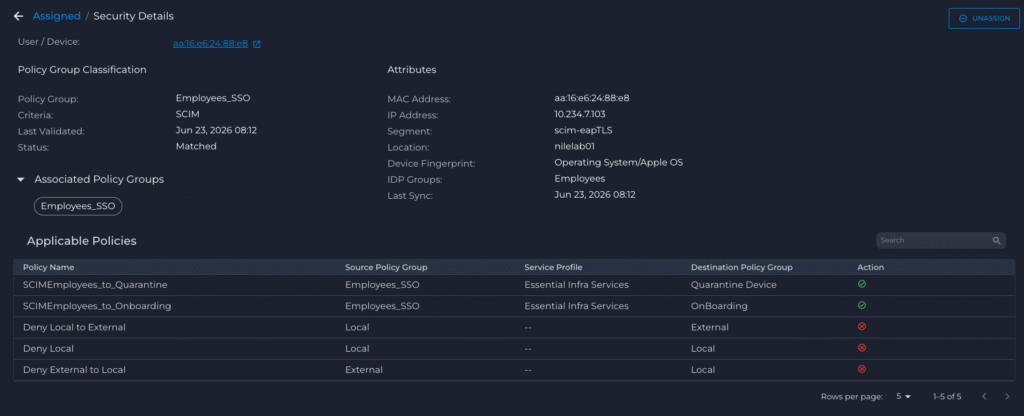
This section shows devices that Nile’s zero trust fabric has matched with the User, Device and App groups. Second screen shot also shows the policies that are associated with it based on that match.
All Users & Devices – Unclassified:
Any device that does not have a match any of the groups I mentioned above will end up as an “Unclassified” client.

I am able to manually move this client into a User or a Device group if I want.

Quarantined Devices:
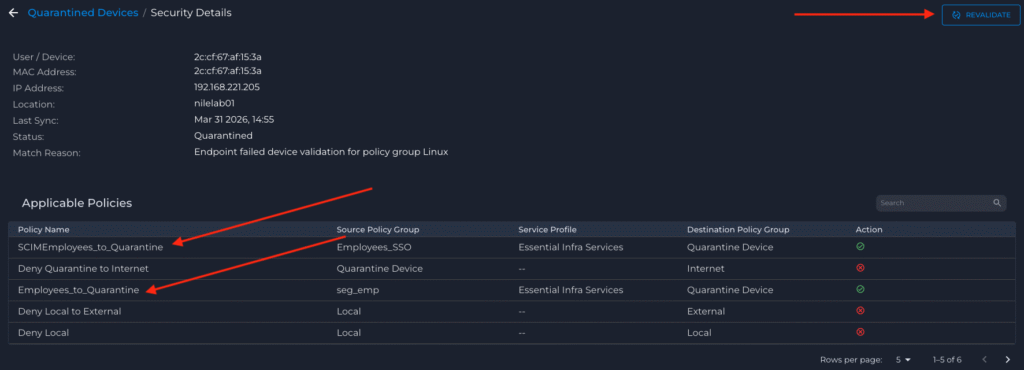
This is where devices that fail any validation and/or posture checks will end up. By default they do not have access any where and nothing can access these devices.

In this screen shot, notice two policies applied to Quarantined Devices. I’m allowing specific SSO Group and Network (Employees) to be able to access these devices but only specific services. This can allow me to access these devices and remedy the situation such as adding relevant credentials or install software etc. Some things to point out here.
This is based on the Context and Identity and NOT the networks. Which means even if employees and these devices are in the same exact network same rules will apply.
Once I add the credentials that are part of the Device Validation Check I can either wait for the system to recheck the device or I can manually trigger that option.
Lastly, what if the device is failing a posture assessment and needs anti virus software installed from the server. A simple policy can be created allowing access to a server only to download the software (we will get into it in another blog, Nile integrates with Intune to perform posture assessment).
Service Profiles:
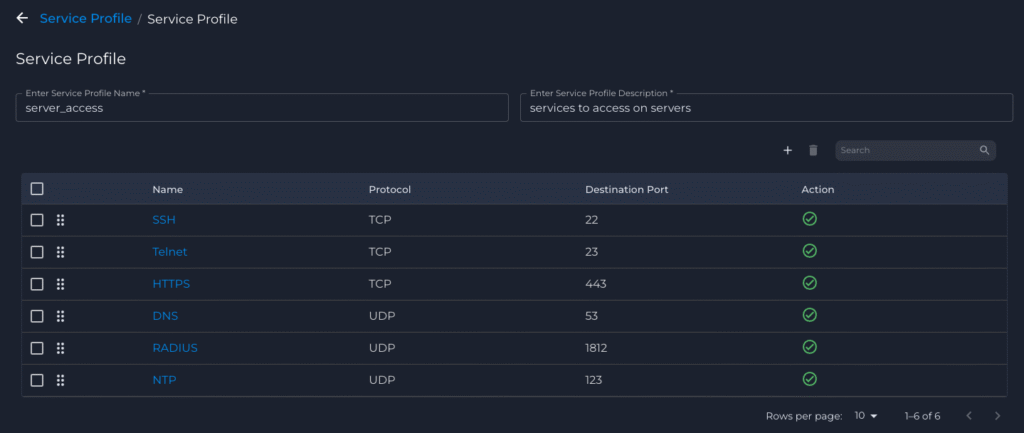
Service profiles is where different services can be configured, these can be a group with multiple services under that group or a single service.

Let’s start with creating a service profile of a single service, first give it a name and description. Then click on the “+” icon to add the service.
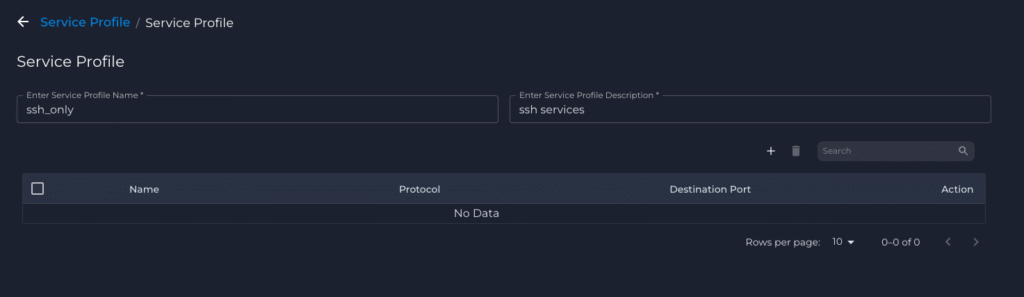

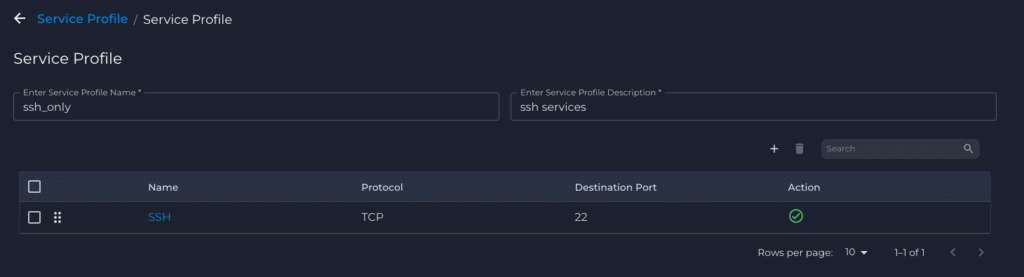
Service profile is ready to be used
Next I’ll create a Service Profile with multiple services. By repeating the process above I can keep adding the services I need.
Policy Sets:
Policy Sets, let users define an outcome based on source, services and destination. There are three outcomes here:
- Allow
- Deny
- Forward
Check out the video below going over the Trust Engine and some configuration options.
This is a high level mind map showing the Policies in the Trust Engine.

Policy Log:
Can’t have policies without the logs, because when you want to troubleshoot, view the traffic, see what is talking to what and what is not talking Nile provides a full Policy Log that is searchable. I will get into more details of these logs in my next post.

It is very important to understand that within Nile’s Zero Trust Fabric, the ability to isolate at the host level and enforce granular policies based on context and identity doesn’t require any third-party software, appliance or additional configuration. It is all an intrinsic part of the Nile’s Fabric and applies to wired and wireless devices.
Stay tuned for more and demo. As always would love to hear any feedback and questions. Thanks for reading.